
How to Manage Product Tracking and Workspaces in Google Tag Manager

Google Tag Manager is a free system for deploying tracking snippets, such as GA4 and conversion tags, without changing your website code every time you update a tag. For marketers, advanced Google Tag Manager recipes bring tags, triggers and variables together so you can measure meaningful actions, including product interactions and conversions.
It’s easy to see why GTM appeals to marketing teams: it provides a central place to manage tracking, while triggers determine when tags fire and variables supply the values they need. Reliable measurement, however, takes more than adding tags. Product data, a well-planned data layer and clear workspace processes help keep tracking useful and manageable.
This guide covers a practical GTM setup, from testing tags and capturing product information to coordinating team changes in workspaces. It also explains how the data layer connects website activity with analytics and marketing tools, creating a stronger foundation for measurement decisions.
Table of Contents
What is Google Tag Manager?
Google Tag Manager (GTM) is a free system for deploying website tracking tags without editing site code for every change. A container holds tags, triggers and variables, while the data layer passes structured website information to those tags.
To see how GTM can support product measurement, watch this guide to GA4 ecommerce tracking:
Install and organise the container. Add GTM’s code snippet immediately after the opening body tag on every website page. Use a container to consolidate marketing tags for that website, then manage them through GTM’s web interface. This gives marketers a central place to deploy or update tags without changing site code each time.
Choose user-type values deliberately. Ask the website team to pass a useful category, such as visitor_type: "member", into the data layer. A tag can use that value to tailor measurement or marketing actions for a user type, rather than relying on a personal identifier. Keep identifiers and other personal data out of tag payloads unless their use is appropriate for your organisation. Singapore’s Personal Data Protection Act (PDPA) governs how organisations collect, use and disclose personal data.
Push Custom Events to the Data Layer
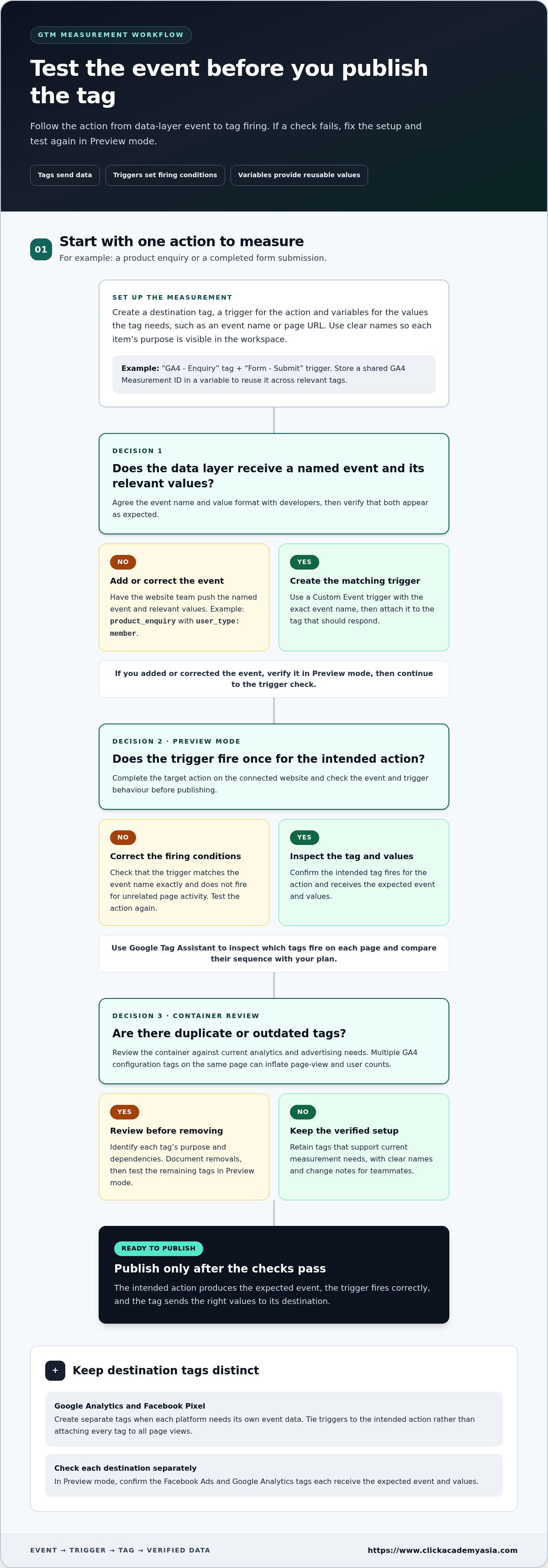
Push a named event and its relevant values when a meaningful action occurs, such as a product enquiry or account registration. For example, a developer can use dataLayer.push({'event': 'product_enquiry', 'user_type': 'member'}). Agree on event names and value formats with developers first, then verify that the event and values appear as expected. Consistent naming gives analytics tags clear, interpretable signals.
Create Custom-Event Triggers
Create a Custom Event trigger in GTM using the event name pushed to the data layer, such as product_enquiry. Attach it to the tag that should respond, then test the interaction in Preview mode before publishing. Match the event name exactly and confirm the trigger fires once for the intended action, not for unrelated page activity.
Sequence dependent tags and use custom HTML selectively. Set tag sequencing when one tag needs another to run first, so dependent actions happen in the intended order. A custom HTML tag can measure interactions with website-specific features, such as a custom video player. Test the sequence and resulting data in Preview mode to catch incorrect firing before publication.
Configure cross-domain and server-side measurement intentionally. Cross-domain tracking can help measure user journeys across multiple domains owned by the same organisation. Add relevant domains to GA4’s unwanted referrals settings to avoid treating internal journeys as external referrals. Server-side GTM events are routed through server infrastructure, where tags are processed outside users’ browsers. Setup requires technical expertise; costs depend on hosting resources, event volume and implementation needs.
GTM tags, triggers, and variables
Build each GTM tag configuration around a defined measurement action, such as a purchase or newsletter sign-up. Tags send data, triggers set firing conditions, and variables provide reusable values. Advanced Google Tag Manager recipes for marketers begin with this clear division of roles.
Follow these steps to connect Google Analytics and advertising tags, test their behaviour and keep the container maintainable.
Set Up Tags, Triggers, and VariablesMap one action to one measurement outcome, such as recording a product enquiry in Google Analytics. Create a tag for the destination, a trigger for the action and variables for the values the tag needs, such as an event name or page URL.Store a shared GA4 Measurement ID in a variable, then use it across relevant tags. If the property changes, update the variable instead of editing each tag separately. Name each item clearly, such as “GA4 - Enquiry” and “Form - Submit”, so its purpose is visible in the workspace.
Test Tags with Google Tag AssistantOpen GTM Preview mode and connect it to the website before publishing a tag configuration. Complete the target action, such as submitting a test enquiry, and check whether the expected tag fires on the correct event.Next, use the Google Tag Assistant Chrome extension to inspect which tags fire on each page. Compare the firing sequence with your plan: a Google Analytics event should fire for the intended action, not simply because a page loaded. If Preview shows unexpected behaviour, correct the trigger conditions or variable values.
Audit and Remove Redundant TagsReview the container’s tags against current analytics and advertising needs. Check whether multiple GA4 configuration tags fire on the same page, because duplicate configuration can inflate page-view and user counts.Remove redundant or outdated tags only after identifying their purpose and dependencies. For example, if an old campaign tag no longer supports an active measurement task, document its removal and test the remaining tags in Preview mode. Clear names and change notes help teammates understand why each tracking code remains.
Separate and verify advertising destinations. Create distinct tags for Google Analytics and Facebook Pixel when each platform needs its own event data. Use triggers tied to the intended action, such as a completed form submission, rather than attaching every tag to all page views. Check the Facebook Ads and Google Analytics tags separately in Preview mode, then confirm each receives the expected event and values.These advanced Google Tag Manager recipes for marketers are most useful when tag decisions support practical analytics interpretation. Build that capability with Google Analytics (GA4) training.
Product data for ecommerce tracking and dynamic remarketing
To set up ecommerce events, push event names and product values into the data layer, then connect GTM variables and event tags to GA4. For Google Ads enhanced conversions, configure the relevant conversion tag to use appropriate first-party customer data, and test its behaviour without placing customer identifiers in general analytics events.
Choose the ecommerce actions to measure. List meaningful actions, such as viewing a product, adding it to a basket, beginning checkout and completing a purchase. Assign each action a clear event name and decide which product values GA4 needs. A defined measurement plan helps developers send consistent information instead of creating separate tracking rules for every page.
Pass item details through the data layer. Ask developers to push product information with each relevant ecommerce event. Useful values can include product ID, product name, quantity and product price, provided the website makes those values available. Keep parameter names and formats consistent across product pages, basket actions and checkout, so GTM variables can read the same data reliably.
Build GTM event tags for GA4. Create a variable for each value the GA4 event needs, then configure a tag for the matching ecommerce action. For example, an add-to-basket event should use the selected product’s ID and quantity, rather than values from another item on the page. Match the trigger to the corresponding data-layer event.
Measure clicks, forms and content engagement. Configure triggers for important button clicks, form submissions and scroll depth. For a newsletter signup, track a confirmed submission rather than a button click alone, since a click does not prove conversion. Use scroll thresholds such as 25%, 50% and 75% to compare engagement across page sections.
Test conversion and remarketing data. Use GTM Preview mode to complete a test journey, from product view through purchase. Check that each event fires once and carries the correct item values into GA4. For dynamic remarketing, provide the product identifiers and page context required by the advertising tag, then verify that the event reflects the product actually viewed.
Protect tracking during a website redesign. Before developers change page templates, document current events, triggers, variables and product values. Re-test key journeys after the redesign, including newsletter signup and checkout, because changed buttons or forms can break existing selectors. Compare the new configuration with the documented tracking plan, and remove obsolete rules only after their replacement works.
During redesigns, check that website changes do not disrupt data or tracking codes. Google Tag Manager can be configured to track e-commerce activity, user engagement events and conversion goals.
Container workspaces and version management
Set up a clear account structure, organise each container and document changes before implementation. GTM supports multiple users with different permission levels, so assign access according to each person’s responsibilities and handle personal data carefully.
Set Up Accounts and ContainersCreate a GTM account for the organisation, then use a separate container for each website or app property. This keeps campaign tags and site-specific settings together instead of mixing configurations across unrelated properties.Before adding tracking code, identify who owns each property and who needs access. For example, one marketing team may work in a website container while another manages a separate property. Avoid duplicate containers for the same site unless there is a clear implementation reason.
Organize Containers and Name TagsGroup related tags in folders, such as analytics, advertising and campaign measurement. Use a consistent platform-and-action naming pattern, for example “GA4 - Lead Form” or “Google Ads - Purchase”. Apply the same clarity to triggers and variables, so teammates can understand each item without opening its configuration.Document each tag’s purpose and the event that activates it. If a custom JavaScript tag supports a campaign, record its owner and dependencies. Clear names and change notes help teams find relevant settings and reduce accidental edits to unrelated tracking.
Manage Container Versions and PermissionsUse a workspace for each distinct tracking project, such as a campaign launch or analytics update. Team members can work on separate projects at the same time, then review changes before publishing. Add a note explaining what changed, why, and which tags or triggers were affected.Publishing creates a snapshot of the container configuration. Use version history to identify the implementation that introduced an issue and see what changed. Give users permissions suited to their responsibilities, and review access when roles change.
Protect data and container access. GTM security risks include unauthorised configuration changes and tags collecting data beyond their intended purpose. Limit access to appropriate users, document custom HTML and JavaScript tags, and remove access when it is no longer needed.Singapore’s Personal Data Protection Act (PDPA) governs how organisations collect, use and disclose personal data. Avoid placing unnecessary customer identifiers in the data layer, where tags may read them, and ensure every value has a clear measurement purpose.
Coordinate server and website changes. Record server-side dependencies alongside the relevant container version, including the event or tag that relies on them. Before developers change JavaScript, page templates or server settings, note the affected tags and triggers. Test the updated journey in Preview mode, then document the result in the published version.For a campaign launch, this process gives marketers and developers a shared record of the change, its owner and its measurement purpose.
How a data layer connects a website to marketing and analytics tools
A data layer gives website information a structured route into GTM, GA4 and advertising tools. Define the values your digital marketing team needs, then deploy them consistently.
Pass Website Data Through the Data LayerAsk developers to add the data-layer code above the GTM code on every page. Agree on the events and values the website should provide, such as a product view, product ID or completed registration. This shared structure lets marketing and analytics tags use consistent inputs rather than relying on page-specific hardcoding.For a custom action, the website can push an event using dataLayer.push({'event': 'registration_complete'}). Add relevant values to the push when tags need them, and document each event name and value format. Review the implementation roadmap with developers to avoid duplicate code or competing event definitions.
Connect GTM with Google Analytics 4In GTM, create variables that read the required data-layer values, then use them in GA4 event tags. Set the tag’s trigger to match the relevant event, such as registration_complete, so GA4 receives the action with its associated values.Use the GA4 Measurement ID for the destination property. It begins with the letter G followed by a string of characters. Test the event in GTM Preview mode, then open GA4 Realtime reports. A user should appear within about half a minute after opening the site.
Map each data point to a platform. Google Marketing Platform combines advertising and analytics tools in a unified platform. Map each event to its intended destination: GA4 can measure a completed registration, while an advertising tag can use a relevant conversion event. Avoid sending every available value to every tool. A deliberate mapping keeps reporting focused on the marketing question.
Keep event names and values consistent. Use one agreed event name across the website, GTM trigger and GA4 tag. For example, if the website pushes registration_complete, configure the custom-event trigger to use that exact name. Keep value formats stable, too, so downstream reports can compare events without interpreting different labels for the same action.
Validate the data path before launch. Preview the website action, confirm the data-layer event appears, and check that the intended GTM tag fires. Then inspect GA4 Realtime reports for the event. If the tag fires but the event is absent, review the destination ID, variable values and event configuration before publishing.
Strengthen your team’s ability to connect measurement strategy with implementation through practical marketing analytics training.
ClickAcademy Asia: WSQ Digital Marketing Strategy & Planning
ClickAcademy Asia’s WSQ Digital Marketing Strategy & Planning helps professionals connect measurement choices with broader marketing objectives. Choose this programme when your team can configure GTM tags but needs a clearer plan for what to measure, how campaigns support business goals and how to interpret results.
For more focused development, WSQ Marketing Analytics & Insights can strengthen measurement and reporting skills, while WSQ Content Marketing Strategy supports planning content around audience and campaign goals. These learning pathways help marketers build on practical tracking knowledge and apply it within a coherent digital marketing strategy.
Equip your team with structured learning that supports stronger marketing decisions. Visit ClickAcademy Asia to explore its training programmes.
Turn measurement skills into better marketing decisions
The next step is to make measurement a shared working practice, rather than a task owned only by the person managing the container. Bring marketers, analysts and developers together to agree on the business questions that matter, who maintains each event and how insights will inform campaign decisions. This clarity helps advanced Google Tag Manager recipes for marketers go beyond technical implementation and become part of how teams learn and refine their strategy.
ClickAcademy Asia offers WSQ Digital Marketing Strategy & Planning, WSQ Content Marketing Strategy and WSQ Search Engine Optimization (SEO). These learning pathways help teams connect measurement with marketing priorities, content planning and search performance, building capability alongside hands-on implementation.
Ready to develop your team’s digital marketing skills? Contact ClickAcademy Asia to explore a learning path that supports your goals. Keep asking better measurement questions, and your team can make more confident decisions.
Frequently Asked Questions
What is the data layer?
The data layer is a structured interface that makes selected website information available to measurement tools. Treat it as a shared specification for developers and marketers: agree on event names and value formats before implementation. For example, a booking journey might distinguish a search from a confirmed booking, helping reports separate intent from completion. Document the specification so website updates don’t silently change the meaning of reported events.
How do Google Tag Manager and Google Analytics 4 compare for event tracking and reporting?
Google Tag Manager manages how tracking tags are configured and when they fire; Google Analytics 4 receives analytics data and presents it in reports. For example, GTM can respond to a completed booking action by sending an event to GA4. Use GA4 to analyse that event alongside other user activity, then use GTM to adjust the collection setup when measurement needs change. They work together, but serve different roles.
How to send server-side GTM events and what does server-side tagging cost?
Route server-side GTM events through server infrastructure, where tags are processed outside users’ browsers. Setup requires technical expertise, and costs depend on hosting resources, event volume and implementation needs.
How to implement consent mode and consent-based tag firing in GTM for Singapore?
Use GTM consent mode to control when tags fire based on users’ consent choices. In Singapore, the PDPA governs how organisations collect, use and disclose personal data.
How to track form submissions, AJAX forms, and lead quality with GTM?
Configure a form-submission trigger to track a confirmed submission rather than a button click alone, since a click does not prove conversion. Test the event in Preview mode and confirm that the expected tag fires.
How to build GTM triggers for video engagement, scroll depth, and outbound clicks?
Set triggers for video interactions, button clicks and scroll depth; example scroll thresholds are 25%, 50% and 75%. A custom HTML tag can measure interactions with a custom video player, and an Auto Event Variable can capture the hostname of a clicked outbound link.



Comments